“Visual Studio Code的安装与配置”的版本间的差异
(→安装Visual Studio Code及扩展) |
(→配置Visual Studio Code的代码格式化) |
||
| 第25行: | 第25行: | ||
复制如下内容并替换setting.json 中的设置: | 复制如下内容并替换setting.json 中的设置: | ||
| − | + | <pre> | |
{ | { | ||
"editor.fontSize": 16, | "editor.fontSize": 16, | ||
| 第49行: | 第49行: | ||
} | } | ||
} | } | ||
| + | </pre> | ||
2019年5月5日 (日) 14:00的版本
所需软件
安装Visual Studio Code及扩展
1.需安装的插件
   Auto Close Tag
   Auto Rename Tag
   Beautify
   ESLint
   JavaScript (ES6) code snippets
   Vetur
   Vetur-wepy
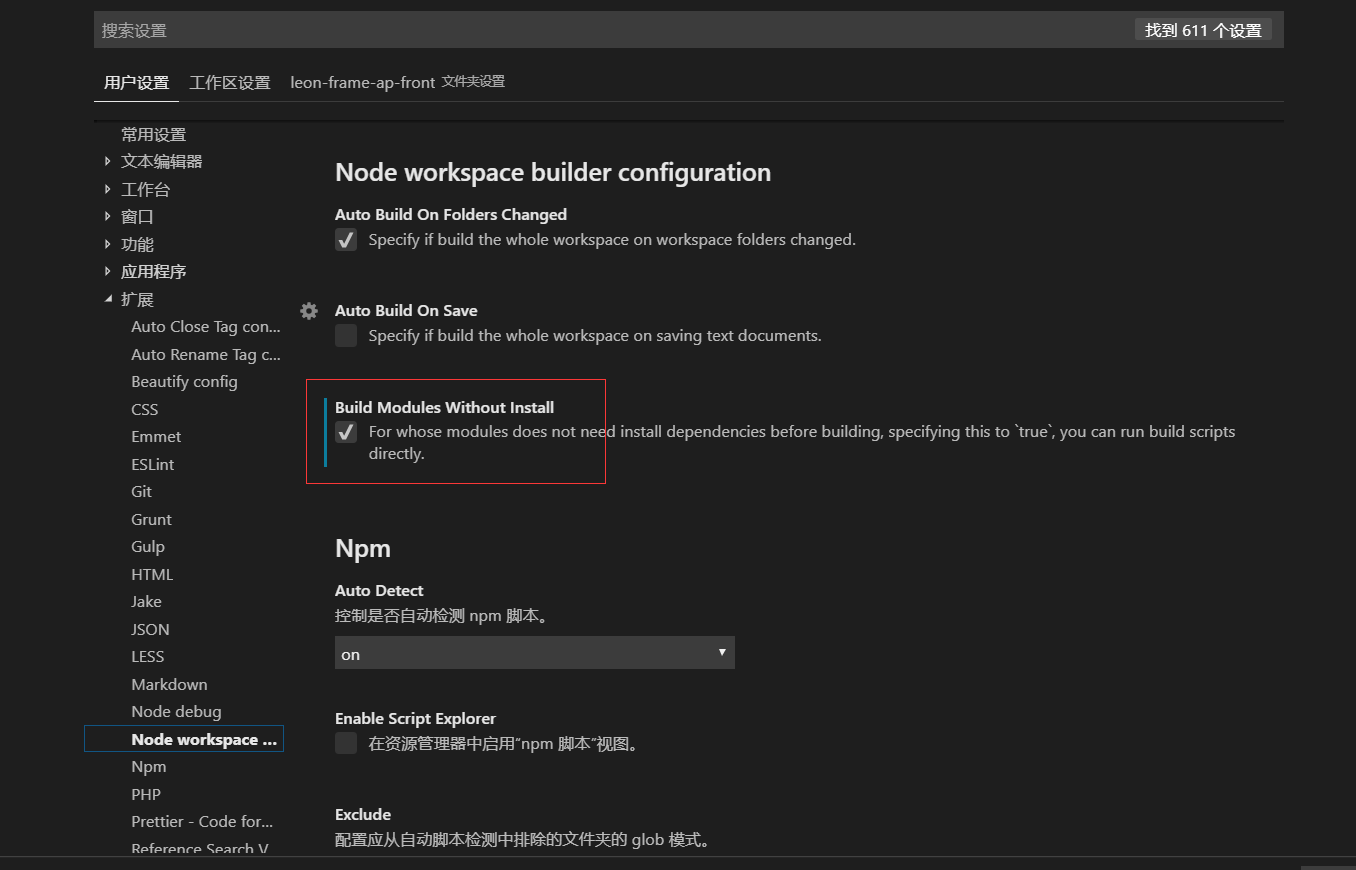
   node Workspace Builder(配置如下)

2.需卸载的插件
   TSLink Vue
   svn
单击左侧的方形扩展图标,打开扩展商店;
在搜索栏中输入:TSLint Vue,安装后点击重新加载按钮;
配置Visual Studio Code的代码格式化
1 点击菜单 文件 --> 首选项 --> 设置 --> 编辑器中的大括号; 复制如下内容并替换setting.json 中的设置:
{
    "editor.fontSize": 16,
    "workbench.editor.enablePreview": false,
    "workbench.editor.enablePreviewFromQuickOpen": false,
    "editor.tabSize": 2, // 编辑器缩进设置
    "editor.formatOnSave": true, // 保存时自动格式化
    "editor.formatOnPaste": true, // 粘贴时自动格式化
    // ↓↓beutify插件设置
    "beautify.config": {
      "indent_size": 2, // js自动格式化缩进设置
      "end_with_newline": true, // 文件结束时增加空行
      "brace_style": "collapse,preserve-inline" // 大括号格式化设置
    },
    "vetur.format.defaultFormatter.html": "js-beautify-html", // vetur插件格式化html设置
    "vetur.format.defaultFormatter.js": "vscode-typescript", // vetur插件格式化js设置
    "vetur.format.defaultFormatter.ts": "vscode-typescript", //vetur格式化typescript设置
    // ↓↓vetur默认格式化设置
    "vetur.format.defaultFormatterOptions": {
      "js-beautify-html": {
        "wrap_attributes": "auto" // 使html代码的属性保持在行内,除非达到最大行宽,否则不折行
      }
    }
}
3 关闭用户设置标签页;
打开工作区
找到前端项目根目录下的.code-workspace文件(以项目sino-demo-distributed-view为例,工作区配置文件为:sino-demo-distributed-view.code-workspace),双击打开;
选择打开方式为Visual Studio Code并设为默认打开方式。
VS Code会默认保存最近一次打开的工作区。
